Your own agent, beside any page.
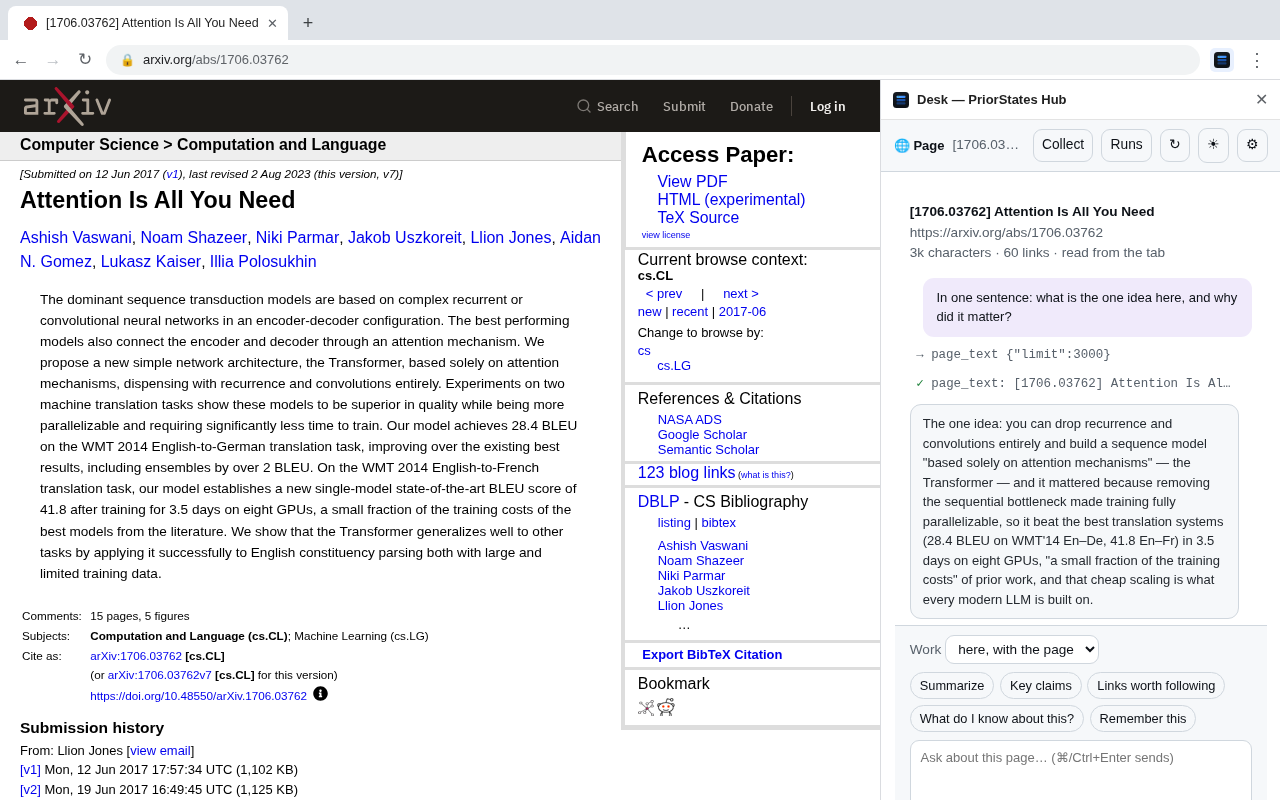
A side panel in Chrome with the coding agent already on your computer. Ask about the page you are reading, keep what matters in your own folders, or fix the hard parts of a Google Doc, without copying anything into a chat.
Three apps, as tabs in the panel
Ask
Beside any page. Answers from the page and from the web with sources, checks a claim against the original, drafts a reply to the email you have open, and keeps the conversation as you move from tab to tab. Say "remember this" and it goes into your notes.
Shelf
Beside any page, or in its own tab. Drag links, images and text onto a folder of your own, or save the page as a note, as HTML or as one complete file. PDFs and other documents are kept as the files themselves. A folder tree with drag to move, right-click to rename, and a trash. Files open in Reader or the browser.
Set it up
About five minutes, once. After that the panel starts the hub by itself when it is needed.
Free, for macOS, Windows and Linux. Run it once: it introduces itself to Chrome, and from then on the panel can start it.
One click from the Chrome Web Store. With the hub installed, Chrome may also offer it by itself on its next start; say yes.
Open Desk from the hub and add Ask, Shelf and Docs from the marketplace. They appear as tabs in the panel.
On any page (pin it from the puzzle-piece menu). To let the panel read pages without clicking the icon first, turn on “Allow on all sites”.
What it needs
- Chrome on a computer where PriorStates Hub runs.
- PriorStates Hub, free, macOS, Windows or Linux. It runs the apps and is the only thing the panel talks to.
- A coding agent for answers: Claude Code, Codex, Qwen Code, Antigravity or Gemini CLI, signed in as you. Reading a page and saving to Shelf work without one. You choose the agent in the hub's Settings.
- Google access only for editing in Docs, set up once inside Docs.
What the extension can see, and when
It has no server and sends nothing to us. What it reads goes only to the hub on your computer.
| The page | Its text, headings and links, while Ask is the tab you are looking at (on by default; turn it off in Ask's settings), or when you ask. Your selection only when you press "Use selection". Without "Allow on all sites", only on the tab where you clicked the Desk icon. |
| Which tab is in front | Its address and title, so the hub can pick the app for that site (Docs on a Google Doc, Ask elsewhere). Not stored. |
| The clipboard | Once, when you press "Use selection" in a Google Doc, because Docs hides its selection from the page. |
| Typing a reply | Only when you press the button: the draft goes into the reply box you have open. You send it. |
| Saving a page | Only when you choose "Save this page → As complete page" in Shelf, into a folder you picked. |
| Starting the hub | If the hub is not running, the panel asks it to start, through the entry the hub registered with Chrome itself. |
If the panel says the hub is not running
- Start PriorStates Hub once by hand. It registers itself with Chrome each time it starts.
- The panel can start the hub by itself from hub 0.3.9 on; the Microsoft Store version from 0.3.12 on.
- If you changed the hub's Desk port in its Settings, set the same port in the extension's options.