
 PriorStates Studio · on your TV
PriorStates Studio Screen
Your menu, notices or waitlist on the store's TV, kept up to date from your phone.
A Google TV and Android TV app. It shows a TV link from Menu Board, Notice Board or Waitlist full screen, pairs with your phone by a QR code, and can open the board again by itself after a power cut.
Set it up
Four steps. You make and change your boards in PriorStates Studio on your phone; Studio Screen shows them.
- 1
Make the TV link
In PriorStates Studio on your phone, open Menu Board, Notice Board or Waitlist, make the TV link and copy it.
- 2
Install Studio Screen
Install it on the Google TV or Android TV from the download below.
- 3
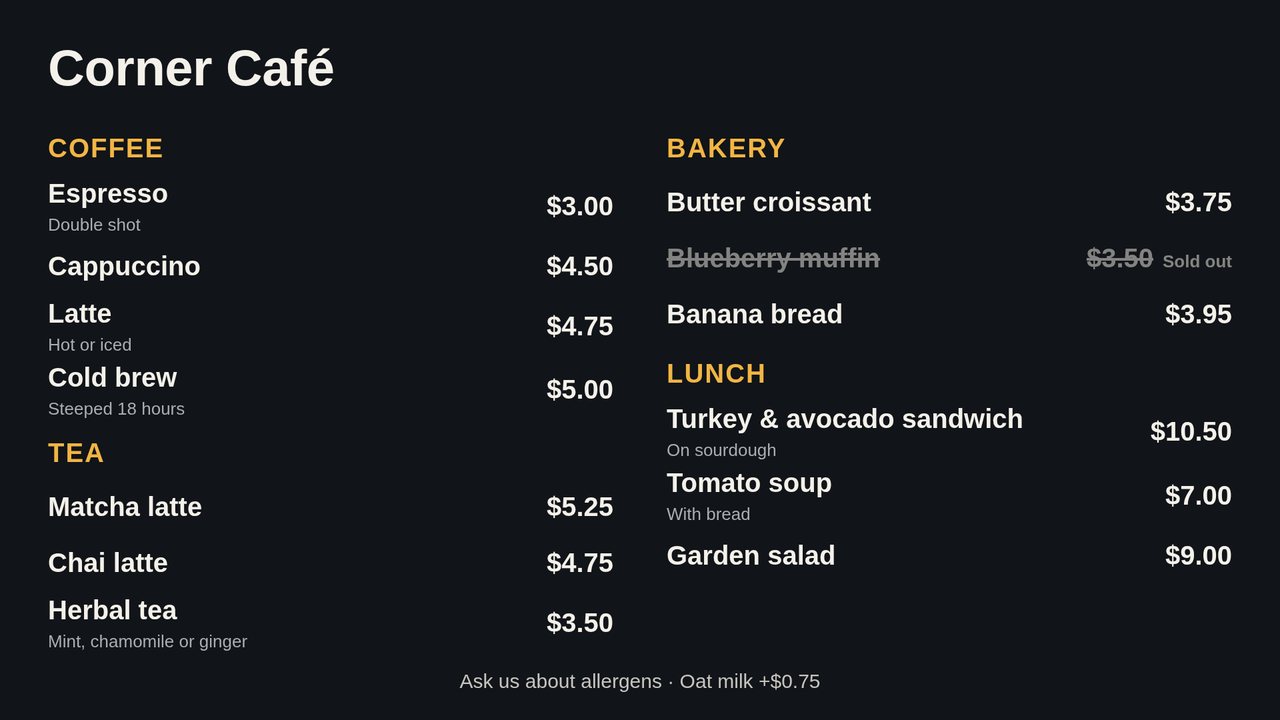
Scan the code on the TV
Open Studio Screen and scan the QR code it shows with your phone's camera. Paste the link on the page that opens and send it. Only that TV can read what you send.
- 4
Leave it on
The board appears full screen. When you change a price, mark an item sold out or add a notice on your phone, the TV shows it within about a minute. Nobody needs to touch the TV.
On the screen
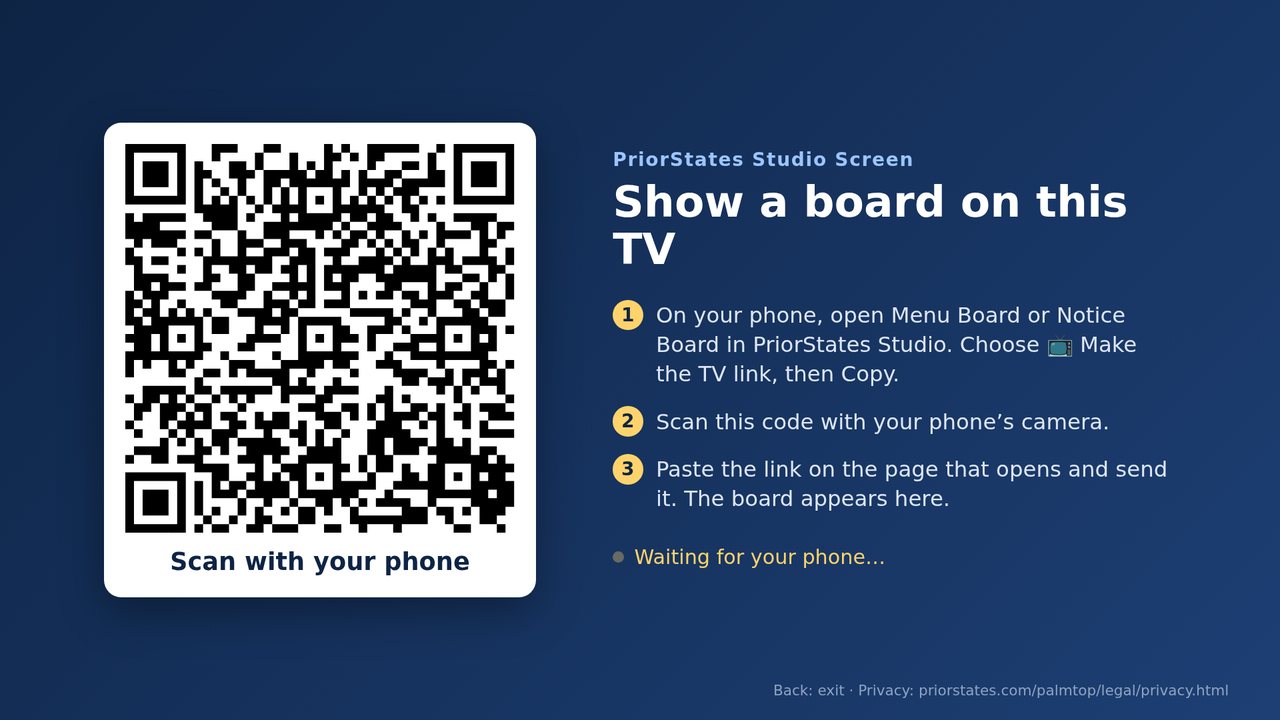
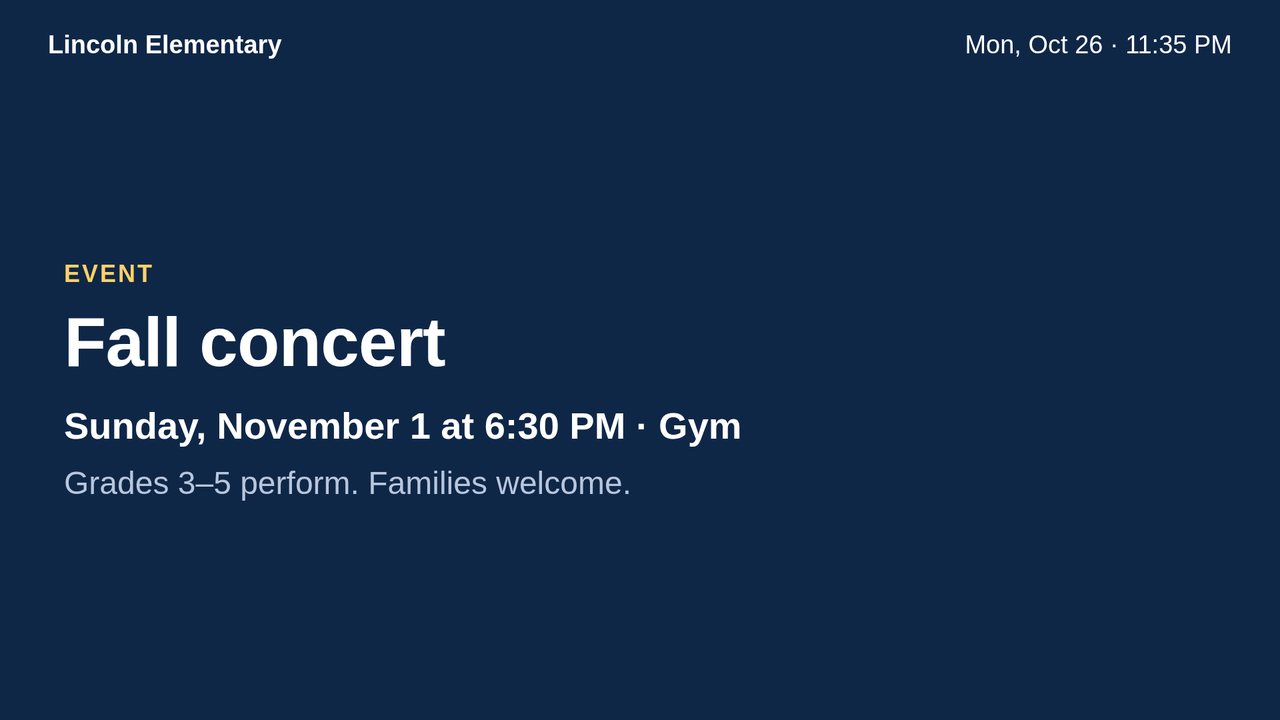
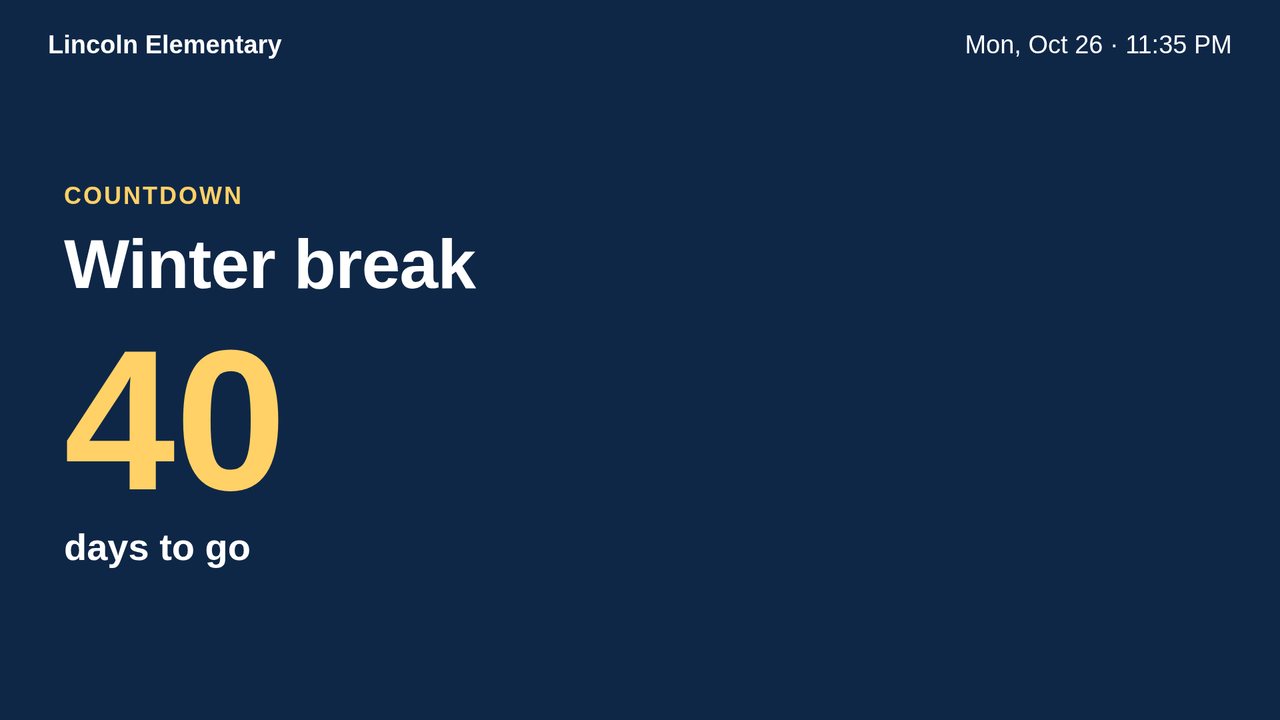
Example boards from the Gallery, as Studio Screen shows them.
Made for a screen that stays on
The board fills the screen, and the TV stays awake.
Back opens a menu with Change board and Exit.
The TV keeps showing the last board. If it starts without a network after a power cut, it shows the last picture of the board and keeps trying until the network is back.
It can open the board again by itself. On Android 10 and newer, allow “Display over other apps” for Studio Screen when the app offers it. On a TV without that setting, open Studio Screen from the home screen.
It reloads the board once a night, and if the page stops, it is opened again on the same board.
Your data
What Studio Screen keeps on the TV, and what travels.
What it does
- It keeps only the TV link you gave it, on the TV.
- It opens nothing outside priorstates.com.
- Pairing goes through our relay, sealed to a key that only that TV holds. The TV deletes the sealed message as soon as it has read it.
- The board travels encrypted, with a key that is only in its link. Whoever has the link can see the board, which suits a menu; keep the link to yourself if the board isn't for everyone.
- A TV showing your board tells your phone when it was last seen and which page it is showing, sealed so that the relay can't read it.
What it doesn't do
- No account, no ads, no analytics.
- It doesn't change your boards: you make and edit them on your phone.
Privacy policy · The full policy, in English, has a section on this app.
Get Studio Screen
For Google TV and Android TV, Android 7 or newer. Free.
Check the file: SHA-256
fae26891d93bea82ff81dad33b726570460862eb631c449add8b2c4bebc5ab64Installing the APK on a Google TV
- On the TV, install Downloader, or another app that can open files, from Google Play.
- Allow that app to install unknown apps. The TV asks the first time; you can also turn it on in the TV's settings.
- In that app, open priorstates.com/download/palmtop/StudioScreen-1.0.2.apk and install it.
No Google TV? Use the TV's browser
Any TV with a web browser can show the board without the app: open the same TV link in its browser. The app adds pairing by QR code, starting by itself after a power cut, and the last picture of the board when the network is down.
PriorStates Studio on your phone →PriorStates Studio for small business →