
Assets
Save design content once, reuse it across apps and share content-only packs.
- 🛠️ Work
- Just for you
- Version 1
- Free · no account
What it does
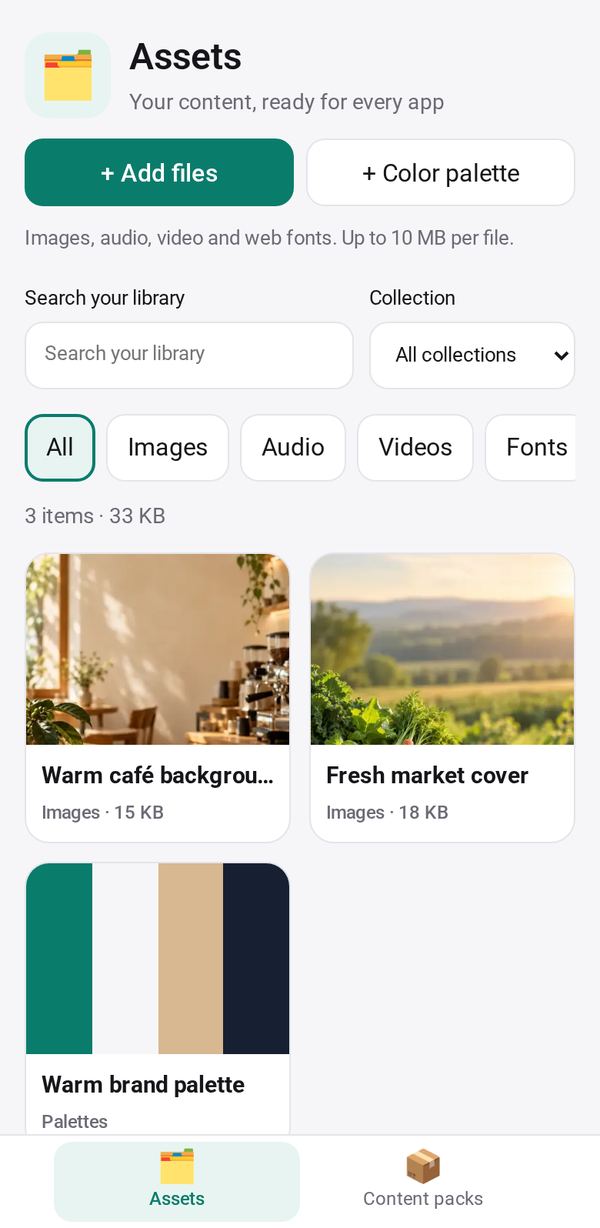
- Images, music, videos, fonts and color palettes in one private library
- Studio can use them in any app you make or change
- Share packs of content only, with the credits for each file
How to start
- Open Studio on your phone, on the web or on your computer, and tap Gallery (or the Find an App tile).
- Find Assets under Work, and tap Add.
Try it with example data (in your browser, nothing is kept) · Open it in Studio on the web
Using it needs no AI. New to Studio? Get started.
Main tasks
Add to your library
Add images, music, videos, fonts or color palettes. Give each a title, collection, tags, creator, license and source.
Find what you need
In the Library tab, search, or filter by type and collection.
Use it in an app
Pick an item and tap "Use with builder" to ask Studio to put it in an app you are making or changing. A copy goes into that app with its credits.
Share or import a pack
In the Packs tab, pick items to export as a pack with their credits. When you import a pack, you see a preview first. Packs hold content only, never code.
Make it yours
Ask Studio: “Group my files by brand, one group per client”
Hold the app and tap Edit with AI, then say what to change in plain words. Every version is kept in History. How to ask well.