
Class Board
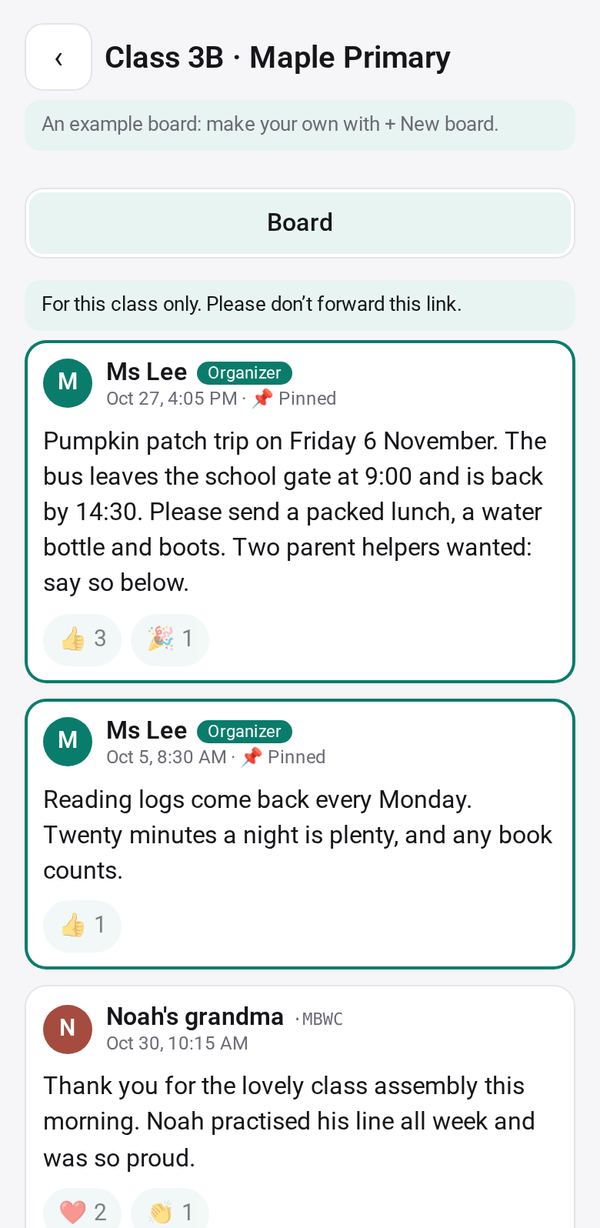
Give your class one board: everyone with the link posts news, questions and photos and sees new posts at once, while you approve, pin notices and keep the whole board
- 👥 Groups & events
- Send it to people
- Version 1
- Free · no account
What it does
- Anyone with the class link posts news, questions and a photo, and sees new posts at once, in any browser
- You pin notices, approve posts before the class sees them, and remove any post
- Posts are private to the class: they are encrypted, so only people with the link can read them; keep the whole board as a keepsake
The people you send its link to open it in any browser, with nothing to install and no account. What they send comes back sealed, so only you can read it.
How to start
- Open Studio on your phone, on the web or on your computer, and tap Gallery (or the Find an App tile).
- Find Class Board under Groups & events, and tap Add.
Try it with example data (in your browser, nothing is kept) · Open it in Studio on the web
Using it needs no AI. New to Studio? Get started.
Main tasks
Make a board
Tap "+ New board" with a name and a line about it, and tick "Class of children" if it is for a children's class.
Share the link
Send or Copy the link, or show the QR code. Members post news, questions and a photo, and react, from any browser.
Approve and pin
In Waiting, approve held posts. Pin a post as a notice, edit or delete a post, or block someone.
Handle reports
In Reports, choose Keep, Delete the post or Block the author for each report a member sends.
Lock, close or keep it
In Settings, lock the board so only you can post, close or reopen it, and print or save the whole board as a keepsake.
Make it yours
Ask Studio: “Add a tag to each post: notice, question or lost and found”
Hold the app and tap Edit with AI, then say what to change in plain words. Every version is kept in History. How to ask well.
In these ready-made spaces
- 🎒 Parents & school (You and your family)
- 🎓 Class & alumni (Groups and work)