
Phone Orders
Take orders by phone in a few taps, or say the order after the call and it fills itself in; read it back, then follow it to Ready with a text
- 🏷️ Sell & side business
- Just for you
- Version 3
- Free · no account
What it does
- Tap the items on your menu while you talk
- Or say the order after the call, and it fills itself in
- Read it back, then follow it to Ready and Picked up, with a text to the customer
How to start
- Open Studio on your phone, on the web or on your computer, and tap Gallery (or the Find an App tile).
- Find Phone Orders under Sell & side business, and tap Add.
Try it with example data (in your browser, nothing is kept) · Open it in Studio on the web
Using it needs no AI. New to Studio? Get started.
Main tasks
Set up your menu
In the Menu tab, add items with a category and price, or tap "🏪 Use my Shop menu" to bring in your Shop items. Set the minutes an order usually takes and any delivery fee.
Take an order during the call
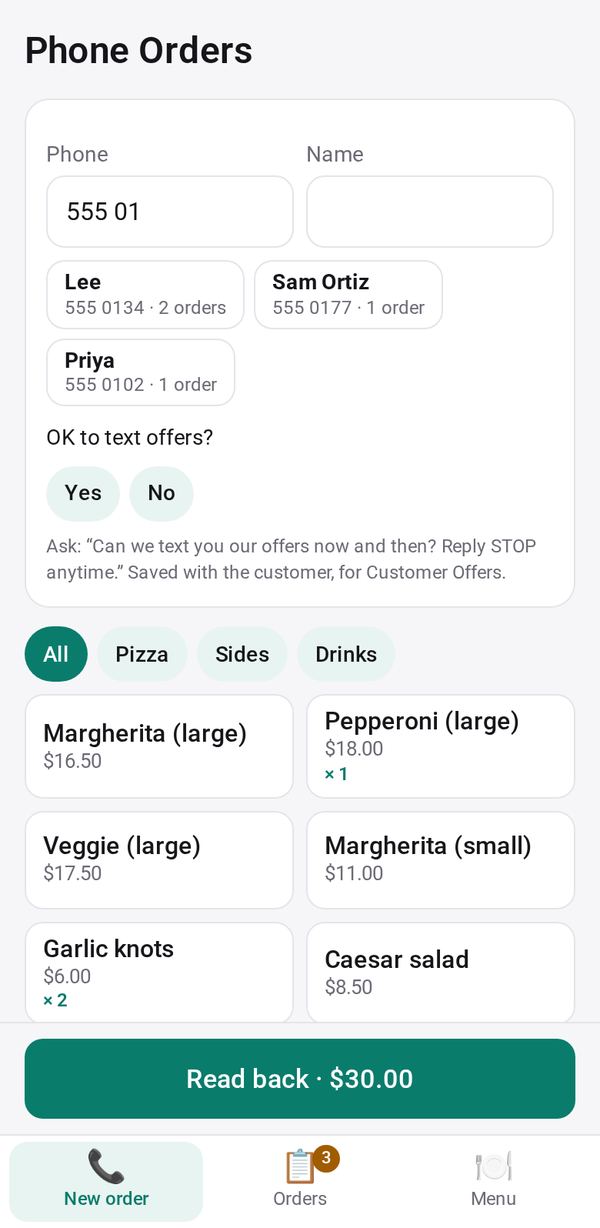
In New order, type the caller's number; a regular's name fills in, with what they usually order and "↺ Again" for a recent order. Tap the menu buttons to add items, pick Pickup or Delivery and a time.
Say the order instead
Tap "🎤 Say the order", or "✍️ Type what they said", and the AI matches it to your menu. Lines it can't match are marked to check the price.
Read it back and save
Tap "Read back · total" to see a large summary to read to the caller, then Save order. You can send a confirmation with "💬 Text a confirmation".
Follow each order
In Orders, move each order along: Start making, "Ready: text them", then Picked up, and Mark paid. "To make" adds up the items of every open order.
Make it yours
Ask Studio: “Add curbside pickup, with the color of the customer's car”
Hold the app and tap Edit with AI, then say what to change in plain words. Every version is kept in History. How to ask well.
In these ready-made spaces
- ☕ Café (Your business)