
Subscriptions
See what you pay every month, and get a reminder before each renewal
- 💰 Money
- Just for you
- Version 9
- Free · no account
What it does
- Add each one by hand, or from a photo of a bill or plan page
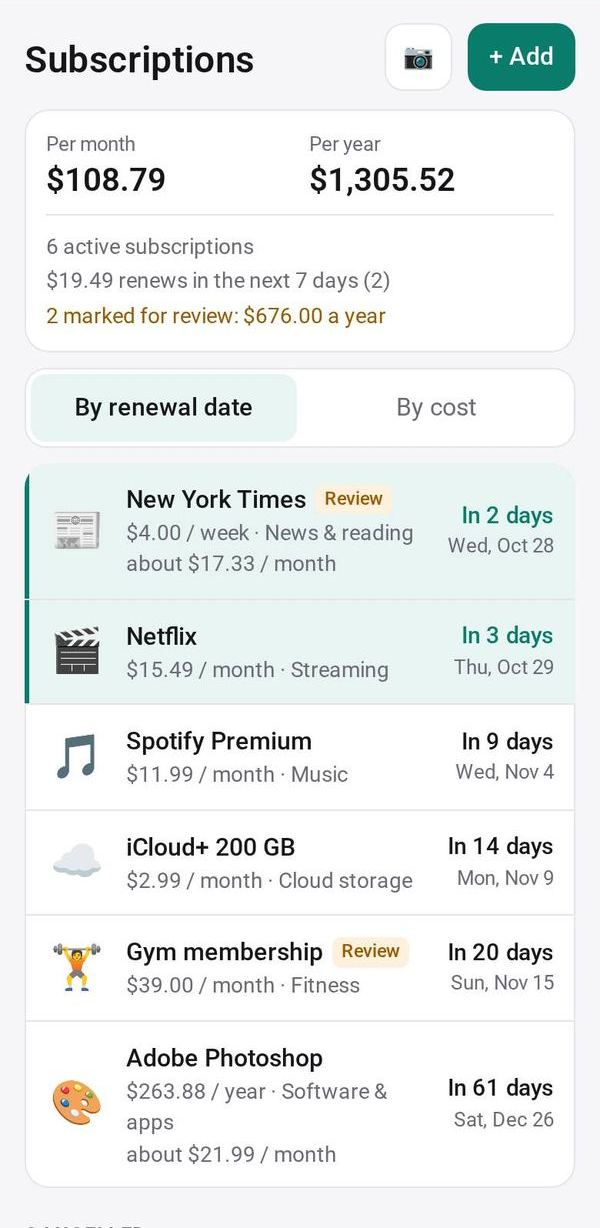
- See what they cost per month and per year
- A reminder before each one renews
How to start
- Open Studio on your phone, on the web or on your computer, and tap Gallery (or the Find an App tile).
- Find Subscriptions under Money, and tap Add.
Try it with example data (in your browser, nothing is kept) · Open it in Studio on the web
Using it needs no AI. New to Studio? Get started.
Main tasks
Add your subscriptions
Tap one of the common examples, such as Streaming or Gym, to fill in the name and category, then enter the price and how often it renews. Or tap 📷 to snap a bill or plan page; when several charges are found, tick the ones you want and tap "Add selected".
Flag the ones to review
Open a subscription and mark it "keep or cancel?". The main view shows how much you have flagged, so you can decide what to drop.
Cancel one and see what you save
Open a subscription and mark it cancelled. It moves to the Cancelled section with the amount it saves per year; tap Restore if you signed up again.
Set your reminders
In the settings, choose how many days before each renewal you want a reminder and at what time. Rows with a reminder show a bell.
Mark work subscriptions
Mark a subscription as used for work and pick its business category. Tax Year Pack then counts it as a business expense.
Make it yours
Ask Studio: “Add who in the family uses each one”
Hold the app and tap Edit with AI, then say what to change in plain words. Every version is kept in History. How to ask well.
In these ready-made spaces
- 🌱 Personal starter (You and your family)
- 💵 Household money (You and your family)
More
Subscriptions on the apps page · Subscriptions: the full page · All apps