
Docs › Studio › Studio on your computer
PDF Editor
PDF Editor is an app from the Gallery for the PDFs on your computer: read them, comment on them, fill and sign them, change their text, put their pages in order, black out what must not be seen, and set a password.
Everything happens on your computer. No file is uploaded, there is no account, and there is no limit on pages or on how many files you work on in a day.
Get it and open a file
In a space, choose Get apps, find PDF Editor under Made for your computer, and install it.
Then open a file in any of these ways:
- Open a file (or Ctrl+O): browse to the file, or type its path and press Enter. Choose with the system dialog… uses your computer's own file window.
- Drop a PDF anywhere on the app.
- Pick one under Recent files.
You can also start with New PDF from pictures (each picture becomes a page) or New blank PDF. Word, Excel and PowerPoint files open as PDFs when LibreOffice is installed on the computer.
A file that has a password asks for it once.
Your file changes only when you save. Until then the app shows the original with your changes on top, and Ctrl+Z takes any of them back.
Read
- Zoom: the − and + buttons, the zoom menu (Fit width, Fit page, 25% to 600%), or Ctrl and the mouse wheel.
- Go to a page: type its number in the box at the top, or click a page in the side panel.
- Side panel: Pages (small pictures of every page), Bookmarks (the file's own table of contents) and Comments.
- Find (Ctrl+F): every match is marked; Enter goes to the next one. Tick Match case when capitals matter.
- Select text with the mouse to copy it. Links inside the file work.
Comment
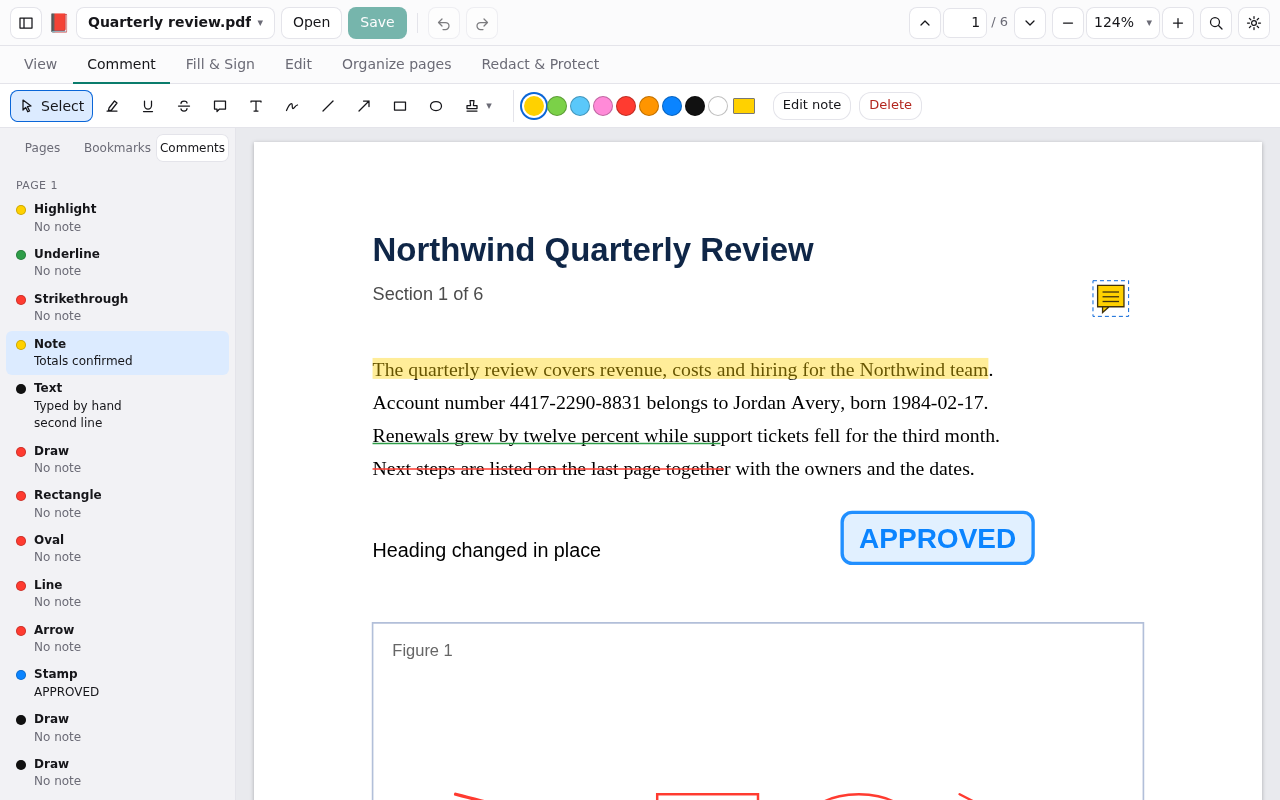
Open Comment and pick a tool:
- Highlight, Underline, Strikethrough: drag across the text.
- Note: click where it goes and type.
- Text: click and type straight onto the page.
- Draw, Line, Arrow, Rectangle, Oval: drag.
- Stamp: choose one (Approved, Draft, Confidential…) or make your own, then click where it goes.
With Select, click a comment to change it: its colour, thickness and size are in the row beside the tools; drag it to move it; the corners resize it; Delete removes it. Double-click a text to type in it again. The arrow keys move a selected comment a little at a time.
The Comments panel lists every comment by page. Click one to go to it.
Comments are saved the standard way, so other PDF programs show them and can change them. Comments made in other programs can be changed here too.
Fill and sign
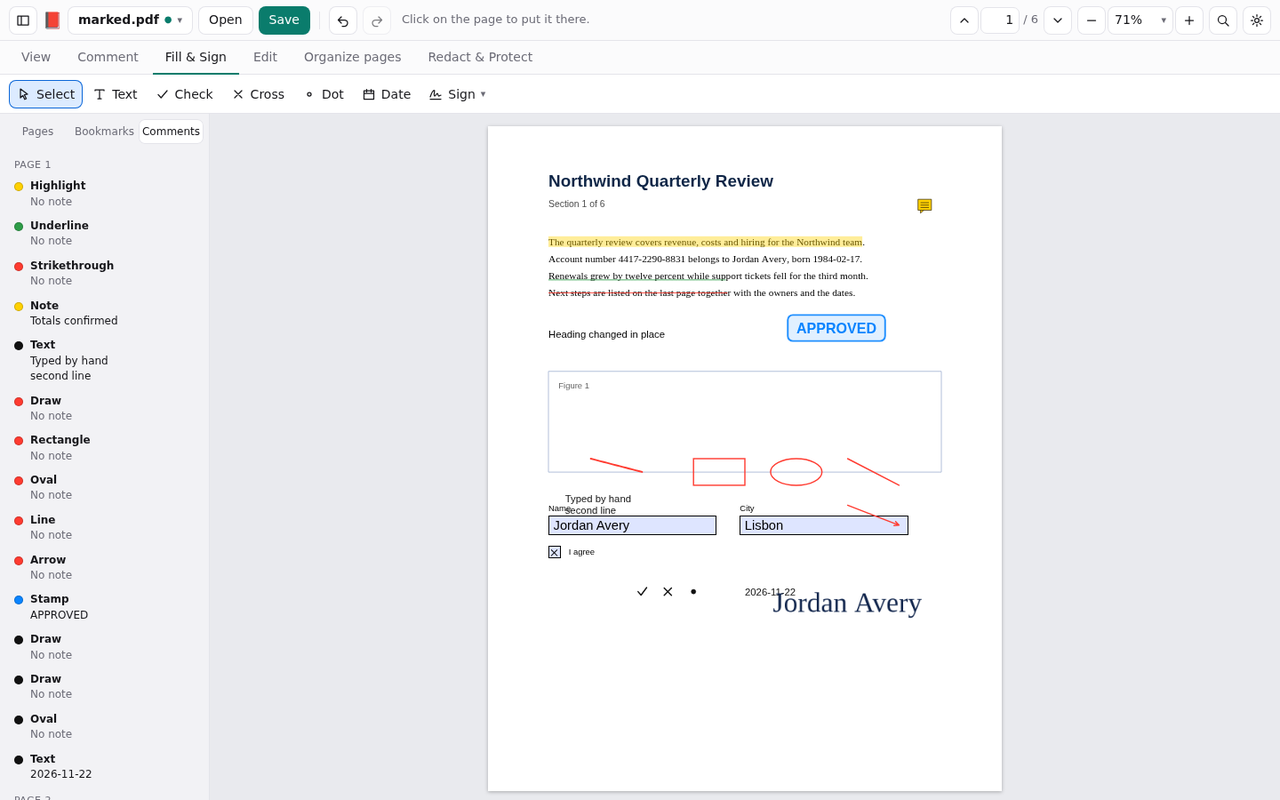
- A form with fields: click a field and type. Tick boxes and lists work as you expect.
- A form that is only a picture of a form: open Fill & Sign, choose Text and click where to write. Check, Cross and Dot put a mark with one click; Date puts today's date.
- Sign: choose Sign → New signature…, then draw it, type your name, or use a picture of your signature. Click where it goes and resize it. With Keep for next time ticked, it is offered again from the Sign menu. It is kept on this computer only.
A signature made this way is a picture of your signature on the page. It is not a certificate signature.
Change what is in the page
Open Edit:
- Edit text: click a line of text, change the words, press Enter. The old words are taken out of the file and the new ones are written in their place. This works one line at a time, and the new words use a standard font close to the original, not always the same one.
- Text adds new text anywhere; Add picture puts a picture on the page.
- Crop: drag a box around what to keep, for this page or all pages. Cropping hides the rest; it does not delete it. File menu → Remove crop brings it back.
- Watermark: a word such as DRAFT across the pages you choose.
- Header & footer: page numbers or a line of text at the top or bottom. Write
{n}for the page number and{N}for the number of pages, for examplePage {n} of {N}.
Organize pages
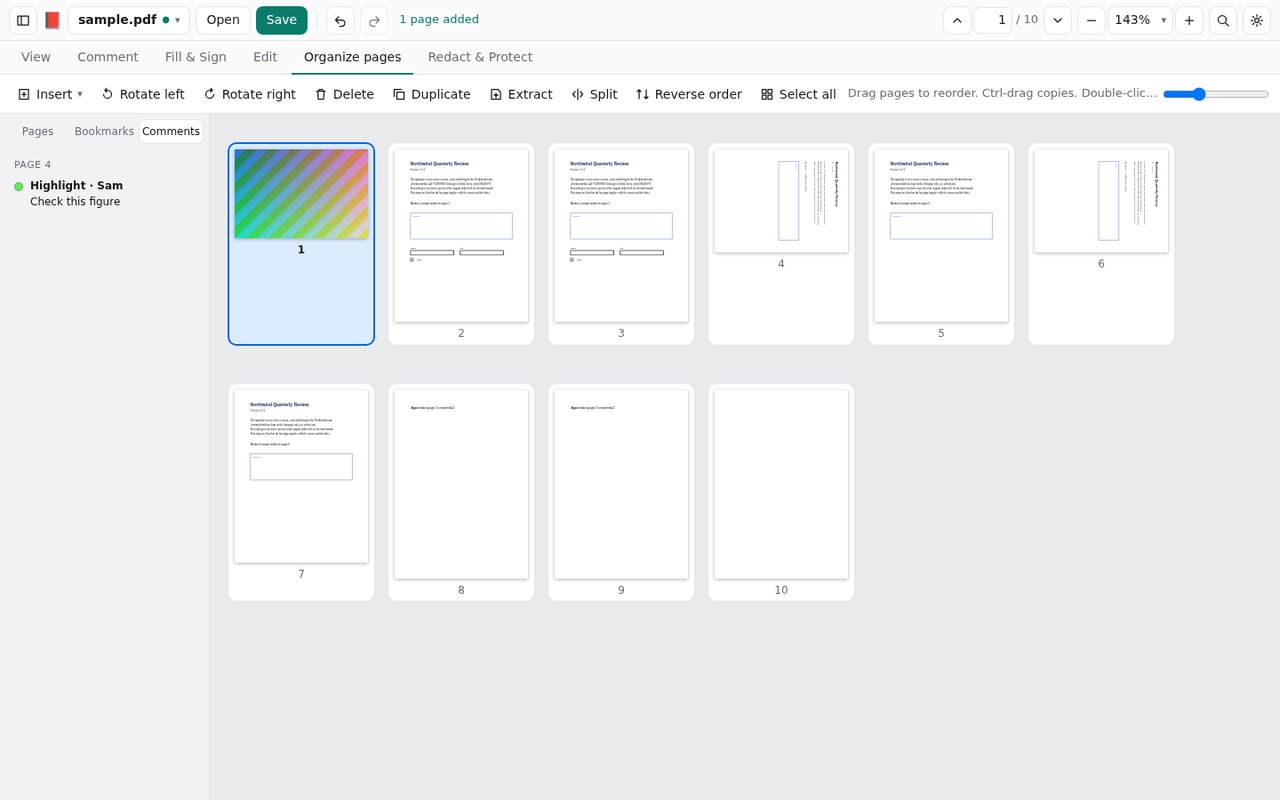
Organize pages shows every page as a card.
- Drag a card to move the page. Hold Ctrl while dragging to copy it. Click, Shift-click and Ctrl-click choose several.
- Rotate left / right, Delete, Duplicate.
- Insert: the pages of another PDF, pictures as pages, or a blank page. They go after the chosen page. This is also how you join files.
- Extract saves the chosen pages as a file of their own.
- Split cuts the file into several: every so many pages, or by ranges such as
1-3; 4-10; 11-. - Reverse order and Select all.
A page you delete is not in the saved file at all.
Redact
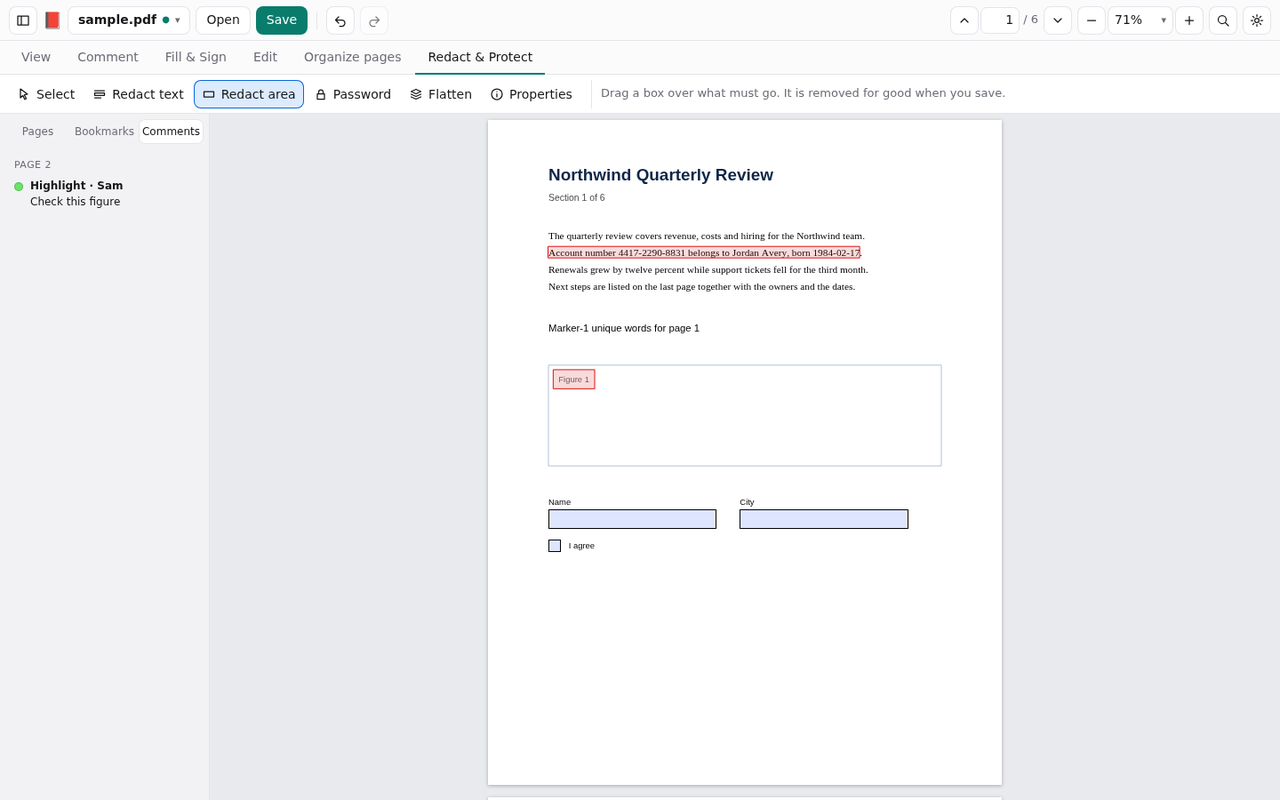
Redacting removes what must not be seen. A black rectangle drawn over text does not do that: the text is still in the file and can be copied out. Redaction here takes the text and pictures under the box out of the file.
- Open Redact & Protect.
- Redact text: drag across the words. Redact area: drag a box over anything else.
- Save. The app says how many areas will be removed and asks for a new file name. Your original file is never changed by a redaction.
The saved file is checked before the app says it is done. For some pages the text cannot be taken out exactly (unusual fonts, or a picture only partly under a box). Such a page is rebuilt as a picture with the boxes painted in, so nothing under them survives; its text can then no longer be selected, and the app tells you how many pages that happened to.
Check the result yourself before you send it: open the new file and search for a word that should be gone.
Protect and finish
- Password: anyone opening the saved file will need it. There is no way to recover a forgotten password. The same button changes or removes a password.
- Flatten saves a copy in which comments and form fields are part of the page and can no longer be changed.
- Properties: the file's title, author, subject and keywords.
Save, and what leaves the app
- Save (Ctrl+S) writes over the file. With Keep a copy before saving over a file on (Settings), the file it replaces is first copied into the app's data on this computer; the last 20 are kept.
- Save as (Ctrl+Shift+S) writes a new file.
- If another program changed the file while you had it open, the app asks before replacing it.
- File menu → Save pages as pictures (PNG or JPEG), Save the text, and Print (Ctrl+P).
Keys
| Key | What it does |
|---|---|
| Ctrl+O, Ctrl+S, Ctrl+Shift+S | Open, Save, Save as |
| Ctrl+Z, Ctrl+Y | Undo, Redo |
| Ctrl+F | Find |
| Ctrl+P | |
| Ctrl++, Ctrl+− | Zoom in, zoom out |
| Ctrl+0, Ctrl+1, Ctrl+2 | Fit page, 100%, Fit width |
| Ctrl+Shift+N | Go to a page |
| Delete | Remove the selected comment, or the chosen pages in Organize |
| Arrow keys | Move the selected comment (Shift: further) |
| Esc | Back to Select |
What it does not do yet
- Make a file smaller (compress).
- Turn a scanned page into text you can search (OCR).
- Keep several files open at once.
- Certificate signatures, PDF/A, and saving a PDF as a Word or Excel file.
The app is in English, 简体中文, 繁體中文, Español and Português, and follows Studio's light or dark look.